

Introduction
How to Build an Excel Dashboard using AI is something I started exploring when I realized how time-consuming manual reporting in Excel can be. As someone who works with data, I often found myself spending hours creating reports that could easily Unlock Excel Dashboards with Python & AI in 2026.
That’s when I began experimenting with Python and AI to generate Excel reports automatically and build fully automated dashboards with just a few lines of code. I was surprised at how quickly I could create charts, organize data, and extract meaningful insights without doing everything manually.
Today, I use AI-powered tools to simplify reporting, save time, and focus more on analysis rather than repetitive tasks.
In this tutorial, you’ll learn how to:
- Build an Excel dashboard using Python
- Create charts automatically
- Use AI to generate insights
- Automate the entire reporting process
👉 This guide is designed for beginners and professionals who want to How to Build an Excel Dashboard using AI
Excel dashboard with Python AI
Imagine Updating an Excel dashboards by hand takes a lot of time and can lead to mistakes. With the help of latest AI Excel Tools Automating dashboards with Python and AI makes the process faster and more accurate.
For example, a marketing team tracking weekly campaign performance across multiple channels would spend hours updating charts manually. With automation, a Python script can pull the latest data, update charts, and refresh the dashboard in seconds. This saves time, reduces errors, and gives the team real-time insights to make better decisions. Automating Excel dashboards helps businesses work smarter, not harder. check the below table
| Aspect | Manual Excel Work | Automated Dashboards |
|---|---|---|
| Repetitive | ❌ | ✅ |
| Time-consuming | ❌ | ✅ |
| Error-prone | ❌ | ✅ |
| Fast | ❌ | ✅ |
| Accurate | ❌ | ✅ |
| Scalable | ❌ | ✅ |
Requirements
Software & Tools
- Python (latest stable version, e.g., 3.12.0)
- Excel (MS-Excel version) – check the compatibility of the Python Excel libraries. If required, update to the latest version. Here, my Excel is 2007, a very old version, but it is still working.
- IDE / Code Editor:
- VS Code, PyCharm, Jupyter Notebook, or Google Colab (in my case am using visual studio code)
Step by Step Implementation Automate Excel Reports Python
What You Need Before Starting
- Basic Python knowledge
- Excel installed on my system
- Required Python libraries
- and last one the valide APIKEY
In this tutorial iam using openai apikey (paid version) in free version there is lot of restriction to use limited access and credits. If you are interested to Build AI That Converts English To PostGREsql sql using python with free API Using gemini ai studio
You can install everything using in your Visual Code Terminal Section and copy the below code to install the packages for this project
pip install pandas matplotlib xlsxwriter openai python-dotenv
Automate Excel Reports Python (Made Simple)
If you’ve ever spent hours putting together Excel reports by hand, you’ll know how tiring it gets. Python makes this whole process much easier, and you don’t need to be a pro to get started to generate Automate Excel Reports Python.
Here’s a simple way I usually set it up:
- Pandas: This is the go-to library for handling data. You can load JSON or CSV files and work with them like neat tables.
- Matplotlib: Perfect for quick charts. For example, you can make a bar chart to see product sales at a glance.
- Dotenv + os: These help you keep your API keys safe. Instead of typing them directly into your script, you load them securely from a
.envfile. - OpenAI client: I use this to generate short insights from the data, like spotting top-selling products or simple trends.
- ExcelWriter + XlsxWriter: Finally, you can export everything into an Excel file — the raw data, the chart, and even the insights — all in one place.
The result is a neat, professional report that’s ready to share — no more tedious copy-pasting. Once everything is set up, updating your reports is as simple as running the script, instead of starting over from scratch each time. It Generate Excel Reports Automatically
After, Installing successfully required packages for this project , then need to import most important libraries to run this code successfully.
import pandas as pd
import matplotlib.pyplot as plt
from openai import OpenAI
from dotenv import load_dotenv
import os
After adding the libraries and the next step is to load the data, Here in my example i have taken the json data of the Sales table and the file name is sales.json
[

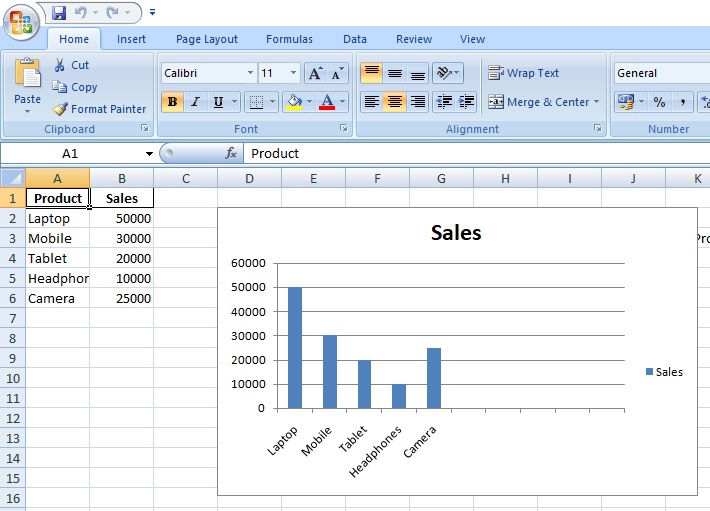
    {"Product": "Laptop", "Sales": 50000},

    {"Product": "Mobile", "Sales": 30000},

    {"Product": "Tablet", "Sales": 20000},

    {"Product": "Headphones", "Sales": 10000},

    {"Product": "Camera", "Sales": 25000}

  ]
to load the above json file into our python code, we need to use read_json()
df = pd.read_json("sales.json")When working with JSON data, converting it into an Excel report can save a lot of time and effort. After adding the JSON file, you can easily load the data into Python and transform it into a structured format. This makes it simple to generate Excel reports automatically without manual work. You can also visualize the data to better understand trends, such as product sales.
plt.figure()
plt.bar(df["Product"], df["Sales"])
plt.title("Product Sales")
plt.xticks(rotation=45)
plt.tight_layout()
plt.savefig("chart.png")
Complete Python Code
import pandas as pd
import matplotlib.pyplot as plt
from openai import OpenAI
from dotenv import load_dotenv
import os

df = pd.read_json("sales.json")

plt.figure()
plt.bar(df["Product"], df["Sales"])
plt.title("Product Sales")
plt.xticks(rotation=45)
plt.tight_layout()
plt.savefig("chart.png")

load_dotenv(override=True)
client = OpenAI(api_key=os.getenv("OPENAI_API_KEY"))

prompt = f"""
Analyze this data:
{df.to_string()}

Give:
1. Top product
2. Trend
3. Suggestion
"""

response = client.chat.completions.create(
    model="gpt-4.1-mini", messages=[{"role": "user", "content": prompt}]
)

insights = response.choices[0].message.content

writer = pd.ExcelWriter("dashboard.xlsx", engine="xlsxwriter")
df.to_excel(writer, sheet_name="Data", index=False)

workbook = writer.book
worksheet = writer.sheets["Data"]

chart = workbook.add_chart({"type": "column"})
chart.add_series(
    {"categories": "=Data!$A$2:$A$11", "values": "=Data!$B$2:$B$11", "name": "Sales"}
)

worksheet.insert_chart("D2", chart)

worksheet.write("H2", "AI Insights")
worksheet.write("H3", insights)

writer.close()

print("✅ Dashboard created successfully!")
Final output , of this project you check the chart report on excel sheet
Real-World Use Case: Sales Report for Electronic Products
In my project, I needed to create a sales report for electronic products. The data came from a JSON file and included product names, sales numbers, and other details. Instead of manually copying and pasting everything into Excel, I decided to automate the process.
Using Python, I organized the data, cleaned it, and created visual charts to see which products were selling the most. I also added a step to generate simple insights, like the top-selling products and overall sales trends.
By doing this, I learned an efficient way of handling data and saving time. If you’re curious about a practical approach, this is a perfect example of how to build an Excel dashboard using AI. The result was a professional, ready-to-share report that updates easily whenever new data comes in, removing the need for repetitive manual work.
FAQ – How to Build an Excel Dashboard using AI
Q1: Do I need advanced Python skills to follow this tutorial?
A: Not at all. Basic Python knowledge is enough. The tutorial guides you step by step, and the code is easy to understand and reuse.
Q2: Can I use any version of Excel?
A: Most modern versions work fine, but it’s recommended to use at least Excel 2007 or newer. Some older versions may not fully support charts or certain ExcelWriter features.
Q3: Do I need a paid OpenAI API key?
A: A paid API key allows full access to AI insights. Free versions have limitations, so for consistent results, a paid key is recommended.
Q4: What types of data files can I use?
A: You can use JSON, CSV, or other structured files. JSON is recommended for this project since it’s easy to convert into tables with pandas.
Q5: How often can I update the dashboard?
A: As often as you like. Once the script is set up, updating your Excel dashboard is as simple as running it again with new data.
Q6: Can I customize charts or insights?
A: Yes! You can adjust chart types, colors, or columns. You can also modify the AI prompt to get different insights based on your needs.
Q7: What are the common errors I might face?
A: Common issues include missing JSON files, wrong column names, missing Python packages, or incorrect API keys. The tutorial also covers how to fix these.
Q8: Is this method suitable for large datasets?
A: Yes, but for very large datasets, you may need to optimize the code or work with chunks to improve performance.
Common Errors and Fixes in an Excel Dashboard Project
- JSON File Not Found or Invalid
- Error: The script can’t read the data because the JSON file is missing or corrupted.
- Fix: Make sure the file path is correct and the JSON is properly formatted. You can test it by opening it in a text editor or using
json.load()in Python.
- Missing Python Packages
- Error: The script fails because a library like
pandas,matplotlib, oropenaiis not installed. - Fix: Install missing packages using
pip install pandas matplotlib openai python-dotenv xlsxwriter.
- Error: The script fails because a library like
- Incorrect Column Names
- Error: Charts or Excel exports fail because the column names in your JSON don’t match what the script expects.
- Fix: Check the JSON keys and make sure they match exactly with the DataFrame columns used in the code.
- API Key Issues
- Error: OpenAI insights fail because the API key is missing, incorrect, or not loaded properly. check always the apikey is active (not deleted) and use load_dotenv(override=True)
client = OpenAI(api_key=os.getenv(“OPENAI_API_KEY”))
- Error: OpenAI insights fail because the API key is missing, incorrect, or not loaded properly. check always the apikey is active (not deleted) and use load_dotenv(override=True)
- Fix: Store your API key in a
.envfile and load it usingdotenvandos. Make sure the variable name matches in your script.
Conclusion
When I first started, I was spending hours manually updating Excel sheets, copying data, and creating charts. It was exhausting and easy to make mistakes.
Now, I just run a Python script, and everything — the data, charts, and even insights — is ready in seconds. It feels almost like magic.
If you work with Excel regularly, I can’t recommend this approach enough. It saves so much time, reduces stress, and makes your work feel much smoother and more professional.