

📑 Table of Contents: Build an AI Quiz Generator with Python
- Introduction: Why Build an AI Quiz Generator
- Project Overview: Step-by-step Python AI quiz tutorial
- Why This Project is Useful
- Key Requirements & Libraries for the Quiz Generator
- Basic Knowledge Needed Before You Start
- Step 1: OpenAI API Key Setup
- Step 2: Setting Up Your Project Files
- Step 3: Install Required Python Libraries
- Step 4: Python Code Explained
- Step 5: Convert Quiz Data to Excel (CSV)
- Output Example: Build an AI Quiz Generator
- Real-World Use Cases for This Project
- Python AI Engineer – Mock Interview Questions
- Conclusion: Extend Your AI Quiz Generator
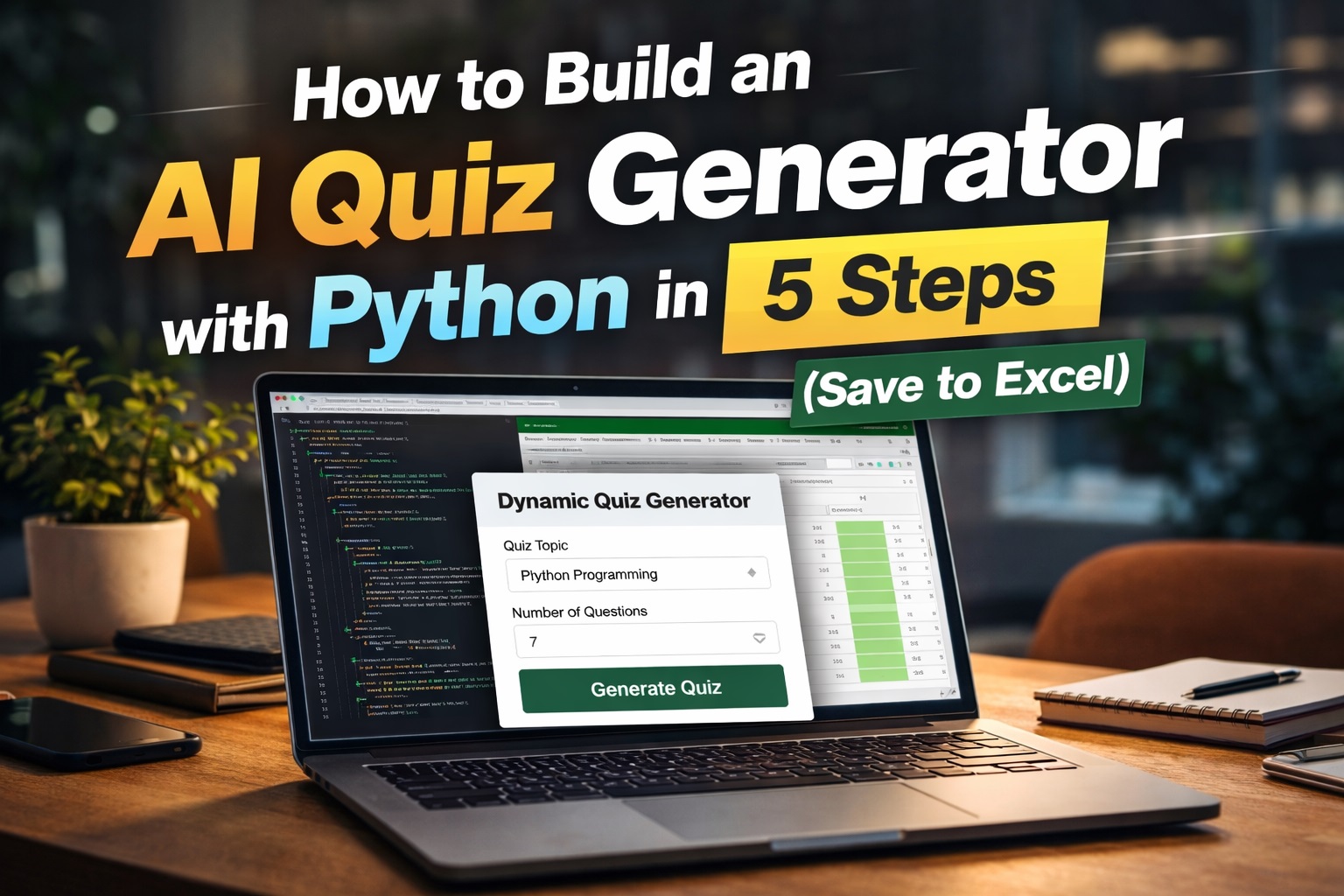
Introduction: Why Build an AI Quiz Generator
How to create an AI-powered quiz in Python — as a developer, I’ve always wanted a simple way to generate interview questions or MCQ quizzes without spending hours writing them manually. That’s when I decided to create a small but powerful project: Build an AI Quiz Generator with Python using OpenAI. In this step-by-step Python AI quiz tutorial, you’ll learn how to automate question creation, save quizzes directly to Excel, and even adapt the workflow for Python AI Engineer mock interview preparation.
If you are interested. Here, is the link without using AI complete coding video in my youtube channel Complete PYTHON Web App Development: Quiz App with User Login!
In this tutorial, you’ll learn how to build an AI Quiz Generator with Python in 5 easy steps. This tool uses OpenAI to generate multiple-choice questions automatically and saves them to Excel, making it perfect for interview preparation and learning.
Before continue check your Python AI Engineer skills – Ultimate Python AI Mock Interview Quiz
Project Overview: Step-by-step Python AI quiz tutorial
Here’s what the script does:
- Takes user input (topic + number of questions)
- Sends a request to OpenAI
- Generates MCQs in JSON format
- Converts JSON into a DataFrame
- Saves the output as a CSV file
Before we dive in: If you’re interested AI Sql Tool tasks with Python, check out my guide on how to Build an AI that converts English to SQL using Python. It’s a great next step after mastering this quiz generator!
In this blog post, I’m building an AI tool that automatically creates multiple-choice questions based on any topic and saves them directly into an Excel (CSV) file using python coding. It’s perfect for students, developers, trainers, or anyone preparing interview content.
In this guide, I’ll walk you through how I built it step by step.
Why This Project is Useful
If you’ve ever:
- Prepared interview questions manually
- Step-by-step Python AI quiz tutorial Generator for students and helpful for mock interview preparations
- Needed quick MCQs for practice
You know how time-consuming it can be.
This tool solves that by:
- Generating questions instantly
- Ensuring structured format (JSON)
- Saving directly into Excel for easy use
📝 Key Requirements & Libraries
| Component | Library / Technology | Purpose |
|---|---|---|
| Language | Python 3.x | Core logic for the quiz script. |
| AI Integration | openai | Connects to the GPT-4o-mini model. |
| Data Structure | json & re | Cleans and parses AI responses. |
| Data Export | pandas | Formats questions into a CSV table. |
| Security | python-dotenv | Protects API keys via .env file. |
| Output File | .csv | Universal format for Excel/Interviews. |
Basic Knowledge Needed Before You Start
Before starting, you should know:
- Python basics (variables, loops, functions)
- Basic understanding of APIs
- Simple file handling (CSV/Excel)
👉 That’s enough — no advanced AI knowledge needed. Code Editor (Any One) Install any editor: Notepad++ (basic), Visual Studio Code (Recommended), PyCharm and MS-Excel , Good Internet Connection
Ok, now its time to dive into a coding part , In this tutorial iam using a Visual Studio Code for coding and Openai (for apikey its not a free apikey) openai charge small amount of fees for apis..
👉 Step 1 OpenAI API Key
Create account : To create account in openai is very easy just login with your valid gmail account.
Step 1: OpenAI API Key Setup
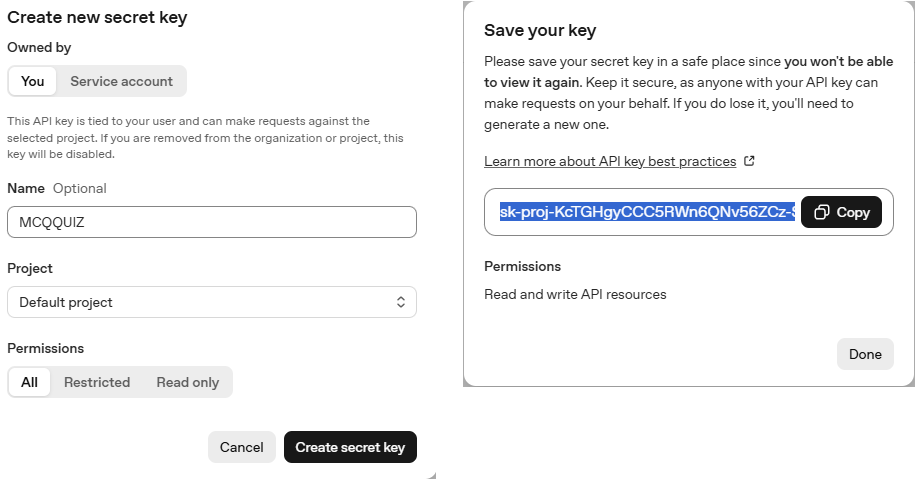
To get started, log in to your OpenAI account. On the left-hand side panel, look for the API keys tab. Clicking this will take you to the API management page.
Follow these steps to generate your key:
- Create the Key: Click the button labeled “Create new secret key.”
- Configure: Give your key a recognizable name and set your preferred permissions.
- Finalize: Click the “Create secret key” (or Add) button.
Important Note: Once the key is generated, a pop-up will appear with your secret key. Copy it immediately and save it in a secure place, like a password manager or a private note. For security reasons, OpenAI will never show you the full key again once you close that window. If you lose it, you’ll have to delete it and create a new one.
Step 2: Setting Up Project Files
Setting Up Your Project Files, Now Coding Part ! Iam using Visual Studio Code
First, we need to create two essential files: .env and Generate_Dynamic_Quiz.py. These should be placed directly in your root directory. In this case, the path is C:\wamp64\www\Algo.
I personally use the Algo folder as my main workspace where I save all of my development projects, so make sure you’re in that specific directory before you begin.
Step 1: Setup .env File
To keep your API key secure, use a .env file: Just add this code in your .env file and replace your openai apikey in “your-api-key-here”
OPENAI_API_KEY="your-api-key-here"This ensures your key is not exposed in the main code.
Step 3: Install Required Python Libraries
Run this command:
pip install openai pandas python-dotenv
Step 4: Python Code Explained
Load Environment Variables
load_dotenv(override=True)
client = OpenAI(api_key=os.getenv("OPENAI_API_KEY"))
Step 4: User Input
The program starts by asking you for two pieces of information. This makes the script “dynamic,” meaning you can create a quiz for any topic without changing the code.
Python
topic = input("Enter quiz topic: ")
num_questions = int(input("How many questions? "))
Step 5: AI Prompt Design
This is the most important part.
You used a structured JSON prompt, which is excellent:
- Forces AI to return clean output
- Avoids unnecessary explanations
- Makes parsing easy
Step 6: API Call
response = client.chat.completions.create(
    model="gpt-4o-mini",
    messages=[{"role": "user", "content": prompt}],
    temperature=0.3,
)
Low temperature ensures:
- More accurate answers
- Less randomness
Step 7: JSON Cleaning
cleaned = re.sub(r"```json|```", "", raw_content).strip()
quiz_data = json.loads(cleaned)
This step removes unwanted markdown formatting and converts data into usable JSON.
Step 5: Convert Quiz Data to Excel (CSV)
df.to_csv(file_name, index=False)
Your quiz gets saved like:
create_chatgpt_beginners_interview_questions_quiz.csv

Output Example: Build an AI Quiz Generator
Your Excel file will contain:
- Question
- 4 options
- Correct answer
Complete Code, Build an AI Quiz Generator with Python in 5 Easy Steps (Save to Excel)
import json
import re
import pandas as pd
from openai import OpenAI
from dotenv import load_dotenv
import os

load_dotenv(override=True)
client = OpenAI(api_key=os.getenv("OPENAI_API_KEY"))

# ===== USER INPUT =====
topic = input("Enter quiz topic: ")
num_questions = int(input("How many questions? "))

# ===== STRONG JSON PROMPT =====
prompt = f"""
Generate exactly {num_questions} multiple choice questions on the topic: {topic}.

Rules:
- Each question must have 4 options.
- Only 1 correct answer.
- Return ONLY valid JSON.
- Do NOT include explanations.
- Do NOT include markdown.
- Do NOT include text before or after JSON.

Format strictly like this:

[
  {{
    "question": "Question text",
    "option1": "Option A",
    "option2": "Option B",
    "option3": "Option C",
    "option4": "Option D",
    "right_answer": "Correct option text"
  }}
]
"""

try:
    response = client.chat.completions.create(
        model="gpt-4o-mini",
        messages=[{"role": "user", "content": prompt}],
        temperature=0.3,
    )

    raw_content = response.choices[0].message.content.strip()

    # Remove markdown if present
    cleaned = re.sub(r"```json|```", "", raw_content).strip()

    # Convert JSON string to Python list
    quiz_data = json.loads(cleaned)

except json.JSONDecodeError:
    print("\n❌ Error: AI did not return valid JSON.")
    print("Raw Response:\n", raw_content)
    exit()

except Exception as e:
    print("\n❌ Unexpected Error:", str(e))
    exit()

# ===== CREATE DATAFRAME =====
rows = []

for i, item in enumerate(quiz_data, start=1):
    rows.append(
        {
            "q_no": i,
            "question": item.get("question", ""),
            "option1": item.get("option1", ""),
            "option2": item.get("option2", ""),
            "option3": item.get("option3", ""),
            "option4": item.get("option4", ""),
            "right_answer": item.get("right_answer", ""),
        }
    )

df = pd.DataFrame(rows)

# ===== SAVE FILE =====
file_name = f"{topic.replace(' ', '_')}_quiz.csv"
df.to_csv(file_name, index=False)

print(f"\n✅ Quiz saved successfully as {file_name}")
Ready to use for:
- Interviews
- Practice tests
- Educational content
Real-World Use Cases
This project is more powerful than it looks. You can use it for:
- Interview preparation platforms
- EdTech tools
- Blog content generation
- YouTube quiz videos
- Online test systems
Conclusion: Extend Your AI Quiz Generator
In this tutorial, we built an AI quiz generator using Python and OpenAI and save into a excel(.csv) file. This project demonstrates how powerful AI can be when combined with simple Python scripts. You can extend this project further by adding a web interface or database storage.
Python AI Engineer – Mock Interview Questions
✅ 1. How do you integrate an AI model (like OpenAI) into a Python application?
In Python, AI models are integrated using APIs or SDKs. For example, using the OpenAI Python SDK, you can send prompts and receive responses.
Steps:
- Install required library
- Store API key securely using
.env - Initialize client
- Send request to the model
- Process and display response
✅ 2. What is prompt engineering and why is it important?
Prompt engineering is the process of designing inputs to get accurate and structured responses from AI models.
Why it matters:
- Output depends on input quality
- Structured prompts improve consistency
- Reduces errors in production
Example:
Return ONLY valid JSON with question, options, and correct answer
✅ 3. How do you handle invalid or unexpected AI responses in Python?
AI responses may return invalid JSON, extra text, or broken formatting.
Techniques:
- Use
try-exceptfor JSON parsing - Clean response using regex
- Validate required keys
Best Practice:
Always validate AI output before using it.
✅ 4. What are tokens in AI models?
Tokens are small chunks of text (words or characters) that AI models process.
Key points:
- Input + output both consume tokens
- More tokens = higher cost
- Models have token limits
✅ 5. How do you optimize API cost when using AI models?
Cost optimization is critical in production systems.
Strategies:
- Limit max tokens
- Use shorter prompts
- Cache repeated responses
- Choose smaller/cheaper models when possible
✅ 6. What is temperature in AI models?
Temperature controls randomness in responses.
0.0→ deterministic (accurate, consistent)1.0→ creative (more variation)
👉 Use low temperature for:
- MCQs
- Structured data
- APIs
✅ 7. How do you secure API keys in a Python application?
Never hardcode API keys.
Best practices:
- Use
.envfiles - Use environment variables
- Restrict API key permissions
- Rotate keys regularly
✅ 8. How do you build an AI-powered quiz generator?
An AI quiz generator uses prompts to generate questions dynamically.
Workflow:
- User selects topic
- Send prompt to AI
- Receive structured questions (JSON)
- Parse and display in UI
✅ 9. What libraries are commonly used for AI apps in Python?
Popular libraries include:
- OpenAI SDK
requests(API calls)json(parsing)re(cleaning responses)Flask/FastAPI(web apps)
✅ 10. How do you deploy a Python AI application?
Deployment depends on scale.
Options:
- Simple apps → Render / Railway
- APIs → AWS / GCP / Azure
- Containers → Docker