
How to Connect PostgreSQL to VS Code (Easy Guide 2026)
Introduction
In 2026, PostgreSQL has become one of my go-to tools for building AI applications, especially when working with SQL query generators. And honestly, it’s easy to see why. It’s flexible, powerful, and capable of handling far more than just storing data.
When you’re working on AI pyton with SQL projects, you constantly deal with complex queries, massive datasets, and multiple types of data. PostgreSQL handles all of that seamlessly, making it a real powerhouse for AI-driven workflows.
When I first started, things weren’t this smooth. I was jumping between different tools for coding and database management, thinking that was the “normal” way to work. But over time, it just started to feel messy and slow. I was spending more time switching tools than actually building anything.
That’s when I decided to simplify things and connect PostgreSQL to Visual Studio Code so I could manage everything in one place. Over time, this setup became my primary way of working. And honestly, that small change made a huge difference. Suddenly, everything felt faster, cleaner, and much easier to manage—especially when I needed to quickly test queries or work with data for my AI projects.
So in this guide, I’ll walk you through exactly how to connect PostgreSQL to VS Code, step by step. Nothing complicated, just a simple approach that actually works.
Let’s dive in 🚀
Install Install PostgreSQL VSCode Setup For Beginners
Before we connect PostgreSQL to Visual Studio Code, make sure you already have PostgreSQL installed on your system.
If you’ve worked with databases before, you might already have it set up. If not, go ahead and install PostgreSQL along with pgAdmin 4, which helps you manage your databases easily.
During installation, just remember to:
- Set a superuser password
- Keep the default port (5432)
- Install pgAdmin 4 for database management
Once installed, PostgreSQL will run in the background, and pgAdmin 4 will let you access and manage your databases.
If everything is ready, you’re good to move on to the next step— Secure connecting PostgreSQL to Visual Studio Code.
Install Visual Studio Code
Before we move forward, make sure you have Visual Studio Code installed on your PC, and ideally, the latest version. Using the newest version ensures you get all the latest features, bug fixes, and better compatibility with extensions like PostgreSQL.
Visual Studio Code, or VS Code, is a free and lightweight code editor that works on Windows, macOS, and Linux. It’s perfect for managing code, running queries, and connecting to databases—all in one place. If you’re following along, this guide will walk you through the PostgreSQL VS Code setup for beginners, so you can get started without any confusion.
To install VS Code:
- Go to the official VS Code website and download the version for your operating system.
- Run the installer and follow the instructions. The default settings are usually fine.
- Once installed, open VS Code to make sure it launches properly.
With VS Code ready, you’ll be all set to install the PostgreSQL extension and connect your database directly within the editor.
How to Connect Postgresql Management Tool to VSCode
Once you have installed the required software, it’s time to connect your PostgreSQL database to VS Code without using the PostgreSQL pgAdmin 4 interface. Below is a clear, step-by-step process to help you set it up easily.
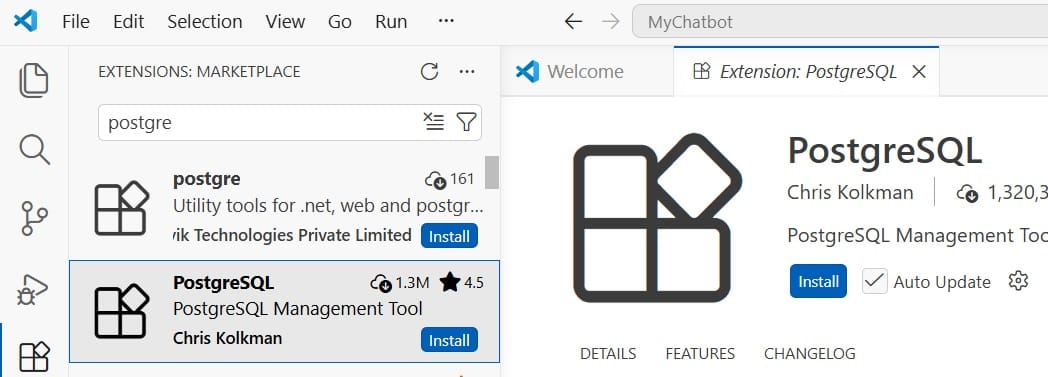
First, open your Visual Studio Code (VS Code). Then, on the right side, a panel contains some default tools available like (Explorer, Search, Source Control, Run and Debug, Extensions). Click on Extensions (Ctrl + Shift + X). Now, in the search bar, type PostgreSQL Management Tool; you can see a lot of results.
For this tutorial, I have used a simpler version that is easy to install and use, which is PostgreSQL V1.4.3. It has more feedback with 4.5 stars (Chris Kolkman). Install it. Once installed successfully, it will be shown in the VS Code left-side panel with an elephant icon (PostgreSQL logo).
After you have installed it successfully, notice that there is a POSTGRESQL EXPLORER: POSTGRESQL +. Click the plus icon, and it will pop up with “the hostname of the database (Press ‘Enter’ to confirm or ‘Escape’ to cancel).” So, here you need to add your hostname, which is localhost. press enter

Get PostgreSQL Connection Details
Before you can connect PostgreSQL to VS Code, you need a few important pieces of information about your database. These are called your connection details, and they tell VS Code how to find and access your PostgreSQL server. and also below steps i explained clearly just follow the step by step process
Here’s what you need to know:
- Hostname – This is the server where your database is running. If it’s on your own computer, it’s usually
localhost. - Port – PostgreSQL uses port
5432by default. Keep this in mind when connecting. - Database Name – The specific database you want to work with. For example,
sampledb. - Username – The PostgreSQL user that has access to the database. Commonly, it’s
postgres. - Password – The password for your PostgreSQL user. Make sure you have it ready.
- SSL Option – Some servers require a secure connection (SSL). For local setups, you can usually choose the standard connection.
Once you have these details, you’re ready to connect your database to VS Code and start running queries.
How to Connect PostgreSQL to VS Code
Step 1: Now, enter the connection properties to connect the PostgreSQL database in VS Code. First, enter the hostname of the database, which is the server name “localhost”.
Step 2: The next step is the PostgreSQL user to authenticate as “postgres”.
Step 3: The next step is after entering the hostname, enter the PostgreSQL user password to authenticate. In my case, it is “admin123”; for you, it might be different. Add your <password> and press Enter.
Step 4: Enter the port number, which is 5432.
Step 5: Use SSL connection, which contains 2 options (Use Secure Connection, Standard Connection) -> select the Standard Connection. Now, you get two options: Show All Databases & postgres. Click on Show All Databases.
Final output: In this tutorial, you have successfully connected PostgreSQL to VS Code using the PostgreSQL Management Tool.
Run Your First SQL Query in VS Code
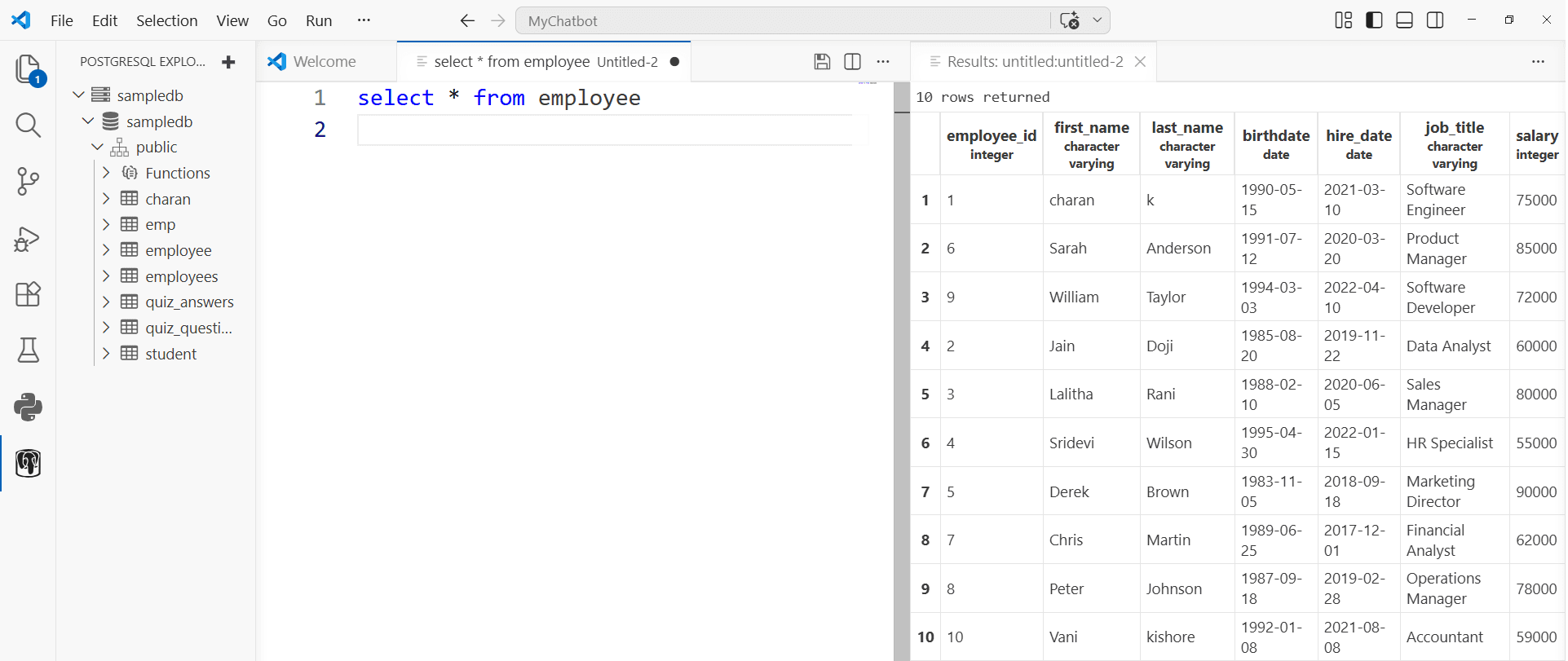
After setup is completed successfully, you can see your database in the VS Code left panel. Now, select any of your databases, right-click, and select New Query. It will open a query window where you can enter your SQL query.
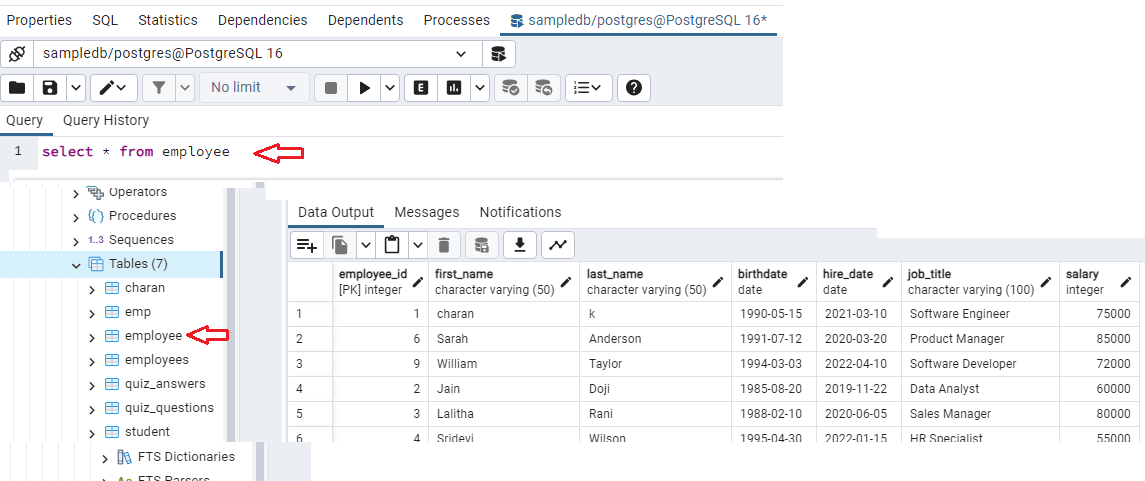
Here, my database is sampledb and the table name is employee, and I wrote the syntax SELECT * FROM employee. You can check the complete output in the images below.
and also you can check my database employee table from the sampledb database
Common PostgreSQL Connection Errors and How to Fix Them
1) Connection Refused – PostgreSQL isn’t running or the server isn’t listening on the expected address/port.
How To Fix – Make sure the PostgreSQL service is active. Check postgresql.conf to confirm listen_addresses = '*' and verify the port is set to 5432.
2) Database ‘X’ Does not Exist – The database name in your connection settings doesn’t match any existing database.
Fix the Error – Double-check the spelling of the database name. You can also run \l in psql to see a list of all databases.
3) Authentication Failed – The username or password is incorrect. By default, PostgreSQL may try to use your system username.
How To Fix – Make sure you are using the correct PostgreSQL username and password in your connection profile.
4) Could Not Connect to Server – No Such File or Directory
How To Fix – Verify that your connection settings in VS Code are correct, especially the hostname (localhost) and port (5432).
Benefits of Using VS Code with PostgreSQL
Using VS Code with PostgreSQL makes working with databases much easier and faster. Here’s why it’s a great setup:
- Work in One Place – You don’t need to switch between different apps. You can write code, run SQL queries, and manage your databases all inside VS Code.
- Saves Time – With the PostgreSQL Management Tool and other extensions, connecting to your database and running queries is quick and simple.
- Less Mistakes – Features like syntax highlighting and auto-complete help you write SQL correctly, so you make fewer errors.
- Works Everywhere – VS Code runs on Windows, Mac, and Linux, so your setup is the same no matter which computer you use.
- Easy to Debug – You can see errors, check logs, and test queries directly in VS Code, which makes fixing problems much faster.
- Great for Big Projects – If you work with large datasets, AI projects, or complex queries, this setup helps you manage everything smoothly.
Overall, connecting PostgreSQL to VS Code makes your workflow simpler, faster, and more efficient—perfect for beginners and pros alike.
Conclusion
Connecting PostgreSQL to VS Code is one of those small changes that makes a big difference. With the PostgreSQL Management Tool, you can manage databases, run queries, and explore tables—all without leaving your editor.
In this guide, we walked through everything step by step: installing PostgreSQL and VS Code, setting up the connection, running your first SQL query, and fixing common errors. Once you’ve got this setup working, your workflow becomes faster, cleaner, and far easier to manage.
Whether you’re building AI projects, learning SQL, or handling large datasets, having PostgreSQL integrated into VS Code keeps everything in one place and saves you time. Try it out—you’ll see how much smoother your development process can be.
F.A.Q – PostgreSQL with VS Code
1. How do I connect PostgreSQL to VS Code?
Install the PostgreSQL extension (like PostgreSQL Management Tool), enter your hostname, port, database, username, and password, and connect.
2. Do I need pgAdmin to use PostgreSQL in VS Code?
No. You can connect, run queries, and manage databases directly in VS Code.
3. What is the default PostgreSQL port?
The default port is 5432.
4. How do I fix connection refused errors?
Make sure PostgreSQL is running, the hostname is correct (localhost for local), and the port is 5432.
5. Why does it say “database does not exist”?
Check your database name spelling and make sure it exists. You can list all databases with \l in psql.
6. How do I fix authentication failed errors?
Use the correct PostgreSQL username and password. By default, PostgreSQL may try your system username.
7. Can I run SQL queries in VS Code?
Yes! Once connected, right-click your database, select New Query, and you can run any SQL commands.
8. Can I connect multiple databases in VS Code?
Yes, you can add multiple connections and switch between them.
9. Is VS Code good for large datasets?
Yes, it works well with large databases and complex queries, making it useful for AI and data projects.
10. Which extensions should I use?
PostgreSQL Management Tool is enough for most users, but SQLTools can add extra features like query history and formatting.
11. Is PostgreSQL free to use?
Yes, PostgreSQL is completely free and open-source. You can use it for personal projects, learning, or even large-scale applications without any license cost.
12. Can I use VS Code for database management?
Yes. With the right extensions, VS Code lets you connect to databases, run queries, and manage tables directly inside the editor, so you don’t need a separate tool.