

Generate SQL queries with an AI Assistant Chatbot
I developed this SQL AI Assistant Chatbot to act as a bridge between complex databases and everyday English. Essentially, it’s a Python-based tool that leverages OpenAI to translate your natural language questions into functional SQL queries in real-time.The best part? It completely removes the barrier to entry for anyone without prior SQL knowledge. Whether you are a beginner just starting out or a developer looking to automate database queries quickly, this setup saves a massive amount of manual coding time.If you want to see the step-by-step build and the logic behind it, you can watch the full tutorial here:SQL AI Assistant: No SQL Knowledge Required Tutorial on YouTube
Build SQL AI Assistant Chatbot No SQL Knowledge Required
I created a SQL AI Assistant Chatbot which helps you work without writing a single line of SQL syntax. You can just use simple, normal English words. For example, if a user wants to display a table called ‘student’ from a database, they usually need to write a query like SELECT * FROM student. But with this AI SQL tool, you can use a natural English prompt to fetch records, like “list the student table” or “get data from student.” It populates the data table from the database using these easy prompts. I developed this tool using Python to connect a SQL Server database with an OpenAI API key.
How the SQL AI Assistant Works (Python + SQL Server + OpenAI)
This project shows how to build an AI chatbot using Python and OpenAI without requiring SQL knowledge.. To communicate between the frontend (Python) and backend (SQL Server), you need an AI API key. In the market, there are plenty of free and paid API options like Google AI Studio or OpenAI. In this tutorial, we’ll use the OpenAI paid version.
Follow these steps to create an OpenAI API key:
- Login to OpenAI: Log in with any valid Gmail account. On the left panel, select API Keys. This redirects you to the API keys page. Click the + Create new secret key button.
- Save Your Secret Key: A dialog box will appear: “Save your key. Please save your secret key in a safe place since you won’t be able to view it again. Keep it secure, as anyone with your API key can make requests on your behalf. If you lose it, you’ll need to generate a new one.” Copy the key and save it in a secure file or notepad. Once you click Done, you won’t be able to see it again.
- Prepare Your IDE: Download and install a coding environment like Visual Studio Code (VS Code) or PyCharm if you don’t have one. Once ready, we can start coding.
Before Continue, how to convert english to sql using python
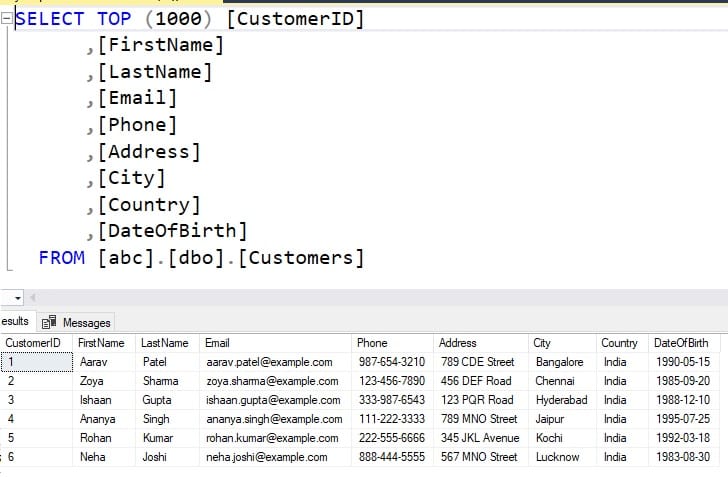
First let’s check the actual database in microsoft sqlserver, here my dbname is abc and table name is customers, you can find in the below image which contains around 9 columns and 6 rows.
Now, Open any IDE Which supports Python coding, in my case am using Visual Studio Code and in my root folder i have created file called SQL-Query-Generator.py and complete code in the below snippet
Required pip install commands
Run this in your terminal:
pip install openai python-dotenv pyodbc
📦 What each package does
1. openai
- Connects your Python code to AI models
- Used to generate SQL queries
2. python-dotenv
- Loads your API key from
.envfile - Keeps your key secure (best practice)
3. pyodbc
- Connects Python to SQL Server
- Executes SQL queries
1. Importing Libraries
import pyodbc
from openai import OpenAI
from dotenv import load_dotenv
import os
What each does:
pyodbc→ Connects Python to SQL ServerOpenAI→ Sends requests to AI modeldotenv→ Loads API key securely from.envos→ Reads environment variables
Make sure all required packages are installed; otherwise, Visual Studio may throw errors. Also, one important security tip: never store sensitive information like API keys or passwords directly in your code. Always use a .env file.
In this project, I’ve only stored the API key in the .env file, but I hardcoded the database connection string for simplicity. Keep in mind, this is not recommended in real-world applications. check this post How To Secure Connection String In Python

OPENAI_API_KEY="Place your Openaikey"how to convert english to sql using python
import pyodbc
from openai import OpenAI
from dotenv import load_dotenv
import os

load_dotenv(override=True)

client = OpenAI(api_key=os.getenv("OPENAI_API_KEY"))
print("API Key:", os.getenv("OPENAI_API_KEY"))
try:
    conn = pyodbc.connect(
        r"DRIVER={ODBC Driver 17 for SQL Server};"
        r"SERVER=localhost;"
        r"DATABASE=abc;"
        r"Trusted_Connection=yes;"
    )
    cursor = conn.cursor()
    print("Connected Successfully To SQL Server\n")

except Exception as e:
    print(f"Error Connecting To SQL Server Database : {e}")
    exit()


def ask_ai_sql(question):

    prompt = f"""
You are an expert SQL Server Developer.
Convert the following question into a valid SQL Server Query.

Rules:
- Return ONLY the SQL query
- No explanations
- No backticks
- SQL Server syntax only

Question: {question}
"""

    try:
        response = client.chat.completions.create(
            model="gpt-4o-mini", messages=[{"role": "user", "content": prompt}]
        )

        sql_query = response.choices[0].message.content.strip()

        return sql_query.replace("`", "")

    except Exception as e:
        print(f"Error Generating SQL FROM GPT: {e}")
        return None


print("Type 'exit' to quit.\n")

while True:

    q = input("Enter The Question: ")

    if q.lower() == "exit":
        break

    try:
        sql_query = ask_ai_sql(q)

        if not sql_query:
            print("SQL generation failed.")
            continue

        print(f"\nGenerated SQL Query:\n{sql_query}\n")

        cursor.execute(sql_query)

        rows = cursor.fetchall()

        if rows:
            for row in rows:
                print(row)
        else:
            print("No Results Found.")

    except Exception as e:
        print(f"Error executing the Query: {e}")

cursor.close()
conn.close()
print("SQL Connection Closed.")
Final output of this project

Note: While building this project, I ran into a few API issues at the beginning. It turned out the API key wasn’t being loaded correctly from the .env file. After debugging, I fixed the configuration, and everything started working fine. So double-check your API key setup before running the code.
Most Common Errors (SQL AI Assistant Project)
1. API Key Error (Very Common)
❌ Error:
AuthenticationError- Invalid API key
✅ Cause:
- Wrong or missing API key
.envfile not loaded
✅ Fix:
- Check
.env:
OPENAI_API_KEY=your_key_here
- Restart terminal
- Make sure:
os.getenv("OPENAI_API_KEY")2. Module Not Found Error
❌ Error:
ModuleNotFoundError: No module named 'openai'
✅ Cause:
- Required packages not installed
✅ Fix:
pip install openai python-dotenv pyodbc
3. SQL Server Connection Error
❌ Error:
Error Connecting To SQL Server Database
✅ Cause:
- Wrong server name
- SQL Server not running
- Incorrect database name
✅ Fix:
- Check:
SERVER=localhostor.\SQLEXPRESS- Database exists
- SQL Server service is running
Dangerous SQL AI Assistant Queries Generated ⚠️
❌ Problem:
AI may generate:
DELETEDROPUPDATE
✅ Fix:
Add rule in prompt:
Do NOT generate DELETE, DROP, UPDATE
Frequently Asked Questions (FAQ)
1. How does an AI SQL Assistant work?
An AI SQL Assistant works by converting simple English questions into SQL queries using models from OpenAI. When a user enters a question, the Python code sends it to the API, and the AI generates the corresponding SQL query. That query is then executed on the database to fetch the required results.
2. Do I need SQL knowledge to use this chatbot?
No, you don’t need prior SQL knowledge. The chatbot lets you interact with the database using simple English prompts, and it automatically generates SQL queries for you. For example, you can type something like in my example i have used “get all customers,” and it will create the SQL query behind the scenes.
3. Can I use databases other than SQL Server?
Yes, you can use other databases like MySQL or PostgreSQL. You just need to update the connection library (for example, mysql-connector for MySQL or psycopg2 for PostgreSQL) and adjust the SQL syntax if required.
If you’re interested, you can check this guide on how to build a SQL AI Assistant for PostgreSQL and generate queries using AI.
4. Is it safe to execute AI-generated SQL queries?
Not completely. AI-generated queries may sometimes be incorrect or unsafe. Always validate queries before executing them, especially in production environments.
5. Why is my chatbot generating incorrect SQL queries?
This usually happens due to:
- Missing database schema information
- Weak prompt instructions
- Ambiguous user input
Improving your prompt and adding table structure helps fix this.