

Introduction: Why AI for English to SQL
I remember the first time I needed to create tables from English using AI for a PostgreSQL project. Even though creating a table is a very beginner-level task, I wanted to see if there was an easier way to do it without memorizing SQL syntax. That’s when I decided to explore AI tools that could understand plain English and turn it into working database commands.
Using the OpenAI API, I was able to convert English to SQL effortlessly, generating table names, columns, and even data types automatically. At first, I wondered how it was even possible to write a no SQL query, just by speaking naturally in plain English —and seeing AI generate a fully working table blew my mind.
No more wrong syntax, no more trying to remember SQL commands; honestly, AI takes coding to the next level in ways I couldn’t have imagined. From my experience, this approach not only saved me a lot of time but also made learning SQL feel much more approachable. In this guide, I’ll share step-by-step how I do it, so you can create tables from English using AI even if you’re new to SQL.
In this guide, I’ll show you how I use the OpenAI API to transform plain English instructions into fully functional PostgreSQL tables. You don’t need to memorize SQL syntax or struggle with column types—I’ll explain how the AI dynamically assigns data types, sets primary keys, and even handles auto-incrementing IDs for you.
By following my experience, you’ll be able to create tables like a pro, directly from natural language. I’ll walk you step by step, sharing not just the code but also my insights and understanding from working on real projects.
Why Use AI to Natural Language To SQL
From my experience, even simple tasks like creating tables or fetching data can become a little tedious if you have to remember SQL syntax, especially when you’re just starting out. In fact, in my previous post, I showed how you can fetch records from a SQL Server database using natural language, without writing a single SQL query.
That’s why I love using AI for natural language to SQL AI code generator. With AI, you can simply type or speak your commands in plain English—like “create a table employees with id, name, and salary”—and it automatically generates the SQL query for you.
In this post, I’ll also show you the real-time code with output, so you can clearly see how English input is converted into a working PostgreSQL query using AI.
Using AI to convert English to SQL has a few major advantages:
- “Honestly, it’s a relief not to have to memorize every single PostgreSQL command.
- If you’re new to PostgreSQL or databases, AI makes creating tables and queries as easy as writing in English.
- Instead of wasting time typing out every single bracket and semicolon, you can actually focus on the fun part—planning how your database should work.
- The AI is smart enough to guess if a column should be a number, a date, or a block of text just by looking at your prompt.
Honestly, from my own experience, using AI tool to convert natural language to SQL syntax makes database tasks feel effortless and almost magical—it’s like having a coding assistant that understands exactly what you want.
How SQL AI Query Generator Makes Creating SQL Tables Effortless
From my experience, creating database tables was not hard, but it was sometimes confusing and time-consuming, especially when I had to remember SQL syntax and data types. That changed when I started using OpenAI with API keys and Python.
Now, I simply write my requirement in plain English, like “create a table for employees with id, name, and salary.” Using the OpenAI API, my Python script sends this input to the AI, and within seconds, it converts it into proper SQL syntax, and the table is automatically created in the database.
The best part is that if you give another prompt like “create a table for students,” it will create the table without any syntax errors. So, you can use almost any words to create tables in the database without worrying about SQL syntax.
Setting up the OpenAI API key is also very simple. I store it securely in a .env file and connect it with my Python code. Once everything is set up, the process becomes smooth and automatic.
What I really like is how the AI understands my input and even selects the correct data types. I don’t need to worry about technical details anymore. It feels like I am just explaining my idea, and the AI is doing the coding part for me.
In my daily work, this saves time and makes database tasks much easier, especially for beginners. Let’s Start the coding part
Step-by-Step Guide: Create PostgreSQL Tables Using OpenAI API
Getting started with creating PostgreSQL (pgAdmin 4) tables using the OpenAI API is much easier than it sounds. You don’t need to be an expert in SQL or coding. If you know a little bit of Python, you’re already good to go.
First, I set up my PostgreSQL database and make sure everything is running properly. Then, I install the required Python libraries so I can connect my code with both PostgreSQL and OpenAI.
Next, I add my OpenAI API key. I usually store it in a .env file to keep it safe and avoid exposing it in my code. This step is important because it allows my Python script to communicate with OpenAI.
After that, I write a simple Python script where I send plain English input—like describing the table I want to create. The OpenAI API processes this input and returns a proper SQL query.
Finally, I run that SQL query in PostgreSQL, and my table is created instantly.
Honestly, the whole process feels smooth and beginner-friendly. Instead of worrying about SQL syntax, I just focus on what I want, and the AI handles the rest.
Requirements for This Project
- OpenAI API key – to convert English into SQL queries
- PostgreSQL database – to create and store your tables
- Visual Studio Code (IDE) – to write and manage your Python code
Configure OpenAI API Key and .env File
In order to get an API key from the OpenAI website, you need to log in with your valid Gmail account. Once you log in, you can create an API key. But one important thing to note is that before clicking the Done button, you must save your API key in a safe place. Once you click Done, you won’t be able to view your complete API key again. Below, I have copied and pasted it into the .env file—you can check the image.

OPENAI_API_KEY=<YOUR OPENAI API KEY>
Also, i’ve saved my postgres connection string in .env file only the necessary connection string (Host, Database Name, User, Password and Port) you can check in the image below NOTE: Change the password , your password might be different
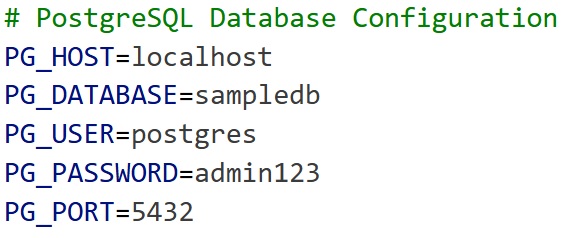
PG_HOST=localhost
PG_DATABASE=sampledb
PG_USER=postgres
PG_PASSWORD=admin123
PG_PORT=5432
Now, the most important part is installing the necessary packages in order to run the application without errors. In the Visual Studio Code terminal below, just copy the command, and it will install the packages into your project directory. In my case, my folder is Algo (C:\wamp64\www\Algo).
pip install openai psycopg2-binary python-dotenv
What each package does
- openai → Connects your Python script to OpenAI API
- psycopg2-binary → Connects Python to PostgreSQL database
- python-dotenv → Loads environment variables from
.envfile
Write Python Script to Convert English to SQL
Here my python file name is No-SQL-Create-Table.py
import openai
import psycopg2
from dotenv import load_dotenv
import os

load_dotenv(override=True)

openai.api_key = os.getenv("OPENAI_API_KEY")

conn = psycopg2.connect(
    host=os.getenv("PG_HOST"),
    database=os.getenv("PG_DATABASE"),
    user=os.getenv("PG_USER"),
    password=os.getenv("PG_PASSWORD"),
    port=os.getenv("PG_PORT"),
)
cur = conn.cursor()
user_input = input("Enter table description in English: ")

prompt = f"""
You are an expert PostgreSQL developer. Convert the following English instruction
into a PostgreSQL CREATE TABLE statement with proper data types.

Rules for data types:
- Column named 'id' -> SERIAL PRIMARY KEY
- Columns like 'name', 'title', 'email' -> VARCHAR(255)
- Text fields like 'address', 'description', 'remarks' -> TEXT
- Numeric fields like 'marks', 'price', 'salary', 'amount' -> FLOAT
- Boolean fields like 'is_active', 'verified' -> BOOLEAN
- Date/Time fields like 'created_at', 'updated_at' -> TIMESTAMP

English instruction: {user_input}

Return only the SQL statement without any extra text.
"""
response = openai.chat.completions.create(
    model="gpt-4",
    messages=[
        {"role": "system", "content": "You are a helpful SQL assistant."},
        {"role": "user", "content": prompt},
    ],
    temperature=0,
)

sql_query = response.choices[0].message.content.strip()
print("\nGenerated SQL Query:\n")
print(sql_query)
try:
    cur.execute(sql_query)
    conn.commit()
    print("\n✅ Table created successfully!")
except Exception as e:
    print("\n❌ Error creating table:", e)
cur.close()
conn.close()
If you notice in the code, I’ve set some rules to generate better results.
These set of rules helps the user prompt to generate automatically our code convert into natural language to sql
For example:
- If the column name is id, it should use
SERIAL PRIMARY KEY - If it’s name or email, it should use
VARCHAR(255) - If it’s something like salary or price, it should use
FLOAT - For dates, it should use
TIMESTAMP
Final Output AI Table Created In PostgreSQL
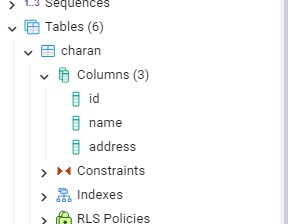
In this tutorial blog post my table name is charan and command i used “charan table with id, name,address” the table created
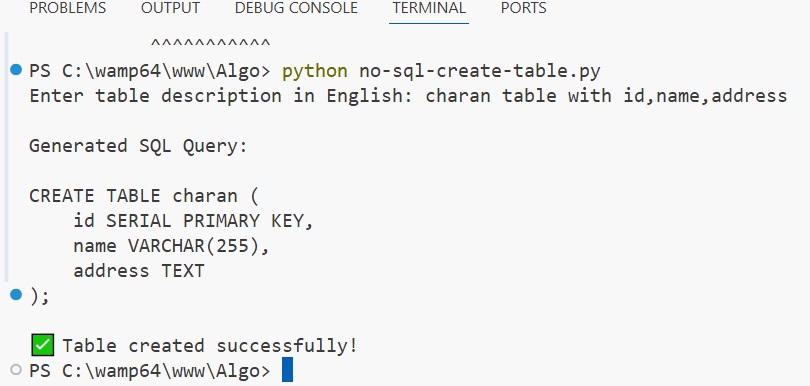
and also in the postgres database check the image table created successfully
Best Practices for Using AI English to SQL (no sql query)
From my experience, using AI to generate SQL is very powerful, but you still need to use it in the right way to get the best results.
🔹 Be clear with your input
The better your English instruction, the better the SQL output. Instead of writing something vague, try to be specific.
👉 Example:
“create table” ❌
“create a table employees with id, name, and salary” ✅
🔹 Always review the generated SQL
Even though AI is smart, it’s not perfect. Sometimes it may choose the wrong data type or miss something.
👉 So always take a quick look before running the query.
🔹 Define rules in your prompt
Just like we did, setting rules helps AI generate better results.
👉 Example:
- id → primary key
- name → varchar
This makes your output more accurate and consistent.
🔹 Keep learning basic SQL
Even if AI is doing the work, knowing basic SQL is still important.
👉 It helps you:
- Understand the output
- Fix errors
- Customize queries
The Errors I Faced While Executing This Code
While running the script, you might see an error like this:
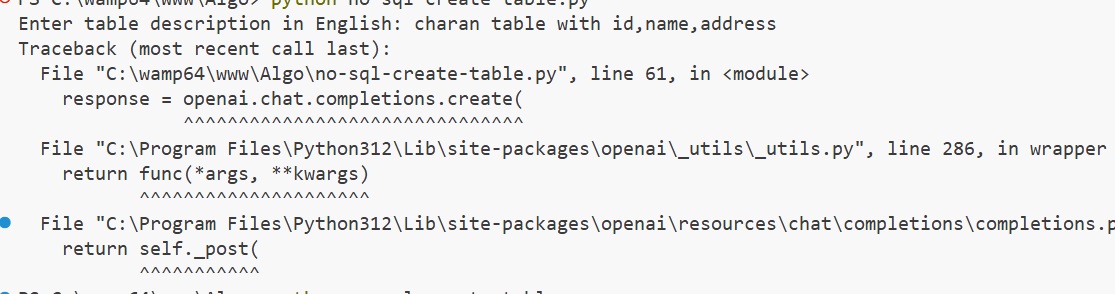
This error usually happens because of a version mismatch in the OpenAI Python library. so always check the apikey and use the override method its rewrites the old apikey
load_dotenv(override=True)
openai.api_key = os.getenv(“OPENAI_API_KEY”)
F.A.Q – AI-Based PostgreSQL Table Generator No SQL Query
🔹 1. Do I need SQL knowledge to use this project?
No, you don’t need prior SQL knowledge. You can simply describe your table in plain English, and the AI will generate the SQL query for you. but its better to have core principles
🔹 2. Which database does this project support?
This project is designed for PostgreSQL. However, with small changes in the prompt, you can also adapt it for other databases like MySQL and SQL Server just need to change the suitable packages need to install.
🔹 3. What if the AI generates incorrect SQL?
Alway double check the output. Sometimes AI may not be 100% accurate. It’s always a good idea to review the generated SQL before running it in your database. AI Makes mistakes
🔹 4. Is the OpenAI API free to use?
No, the OpenAI API is not free. You can create an API key, but when it comes to implementation, the API key credits show zero. So, OpenAI is not free—I have not used the free version. However, Gemini AI Studio offers a free option. You can use it check out this Free Gemini AI Chatbot Like ChatGPT with Python using a free AI Studio API key.
🔹 5. How does the AI decide data types?
The AI follows the rules defined in your prompt. For example, it assigns SERIAL for IDs, VARCHAR for names, and FLOAT for numeric values. I’ve showed an example in the tutorial is very important part
🔹 6. What happens if the table already exists?
Of course, You will get an error. To avoid this, you can use CREATE TABLE IF NOT EXISTS. Which i have not showed in my coding part.
🔹 7. Which programming language is used in this project?
This project uses Python along with the OpenAI API and PostgreSQL.
🔹 10. Can I use voice input instead of typing?
Yes, you can integrate speech recognition in Python to convert voice into text and then send it to the AI.
Traditional Way To Create A Table In Postgresql
A traditional method , we write old style sql syntax to create a table in sql query code generator window
CREATE TABLE charan (
    id SERIAL PRIMARY KEY,
    name VARCHAR(255),
    address TEXT
);