

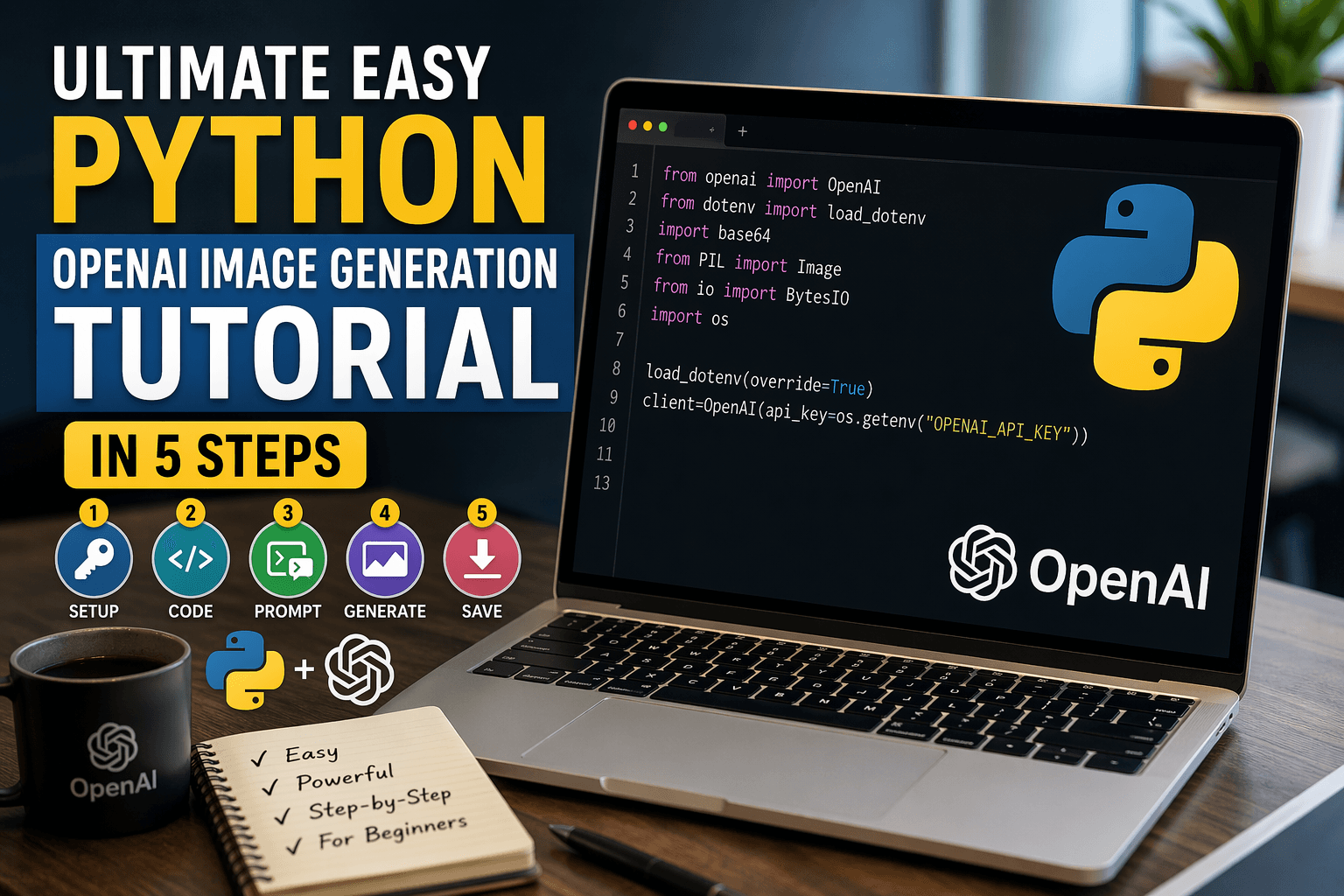
Introduction to Python OpenAI Image Generation Tutorial
Images play a very important role in blogging and YouTube content. In my experience, a good image is often the first thing that grabs a user’s attention before they even read the content or watch the video. Whether it’s a blog thumbnail or a YouTube cover image, visuals decide whether someone clicks or scrolls away.
Before AI tools became popular, creating high-quality HD or even 4K/8K images was not easy. I personally remember how much time it used to take to design a single thumbnail using tools like Photoshop. It required proper design knowledge, patience, and sometimes even hiring a designer, which made the entire process expensive and time-consuming.
But now, things have completely changed with Text To Image Generation AI.
With modern Python OpenAI Image Generation techniques and the Image generation | OpenAI API, you can now create high-quality images in just a few seconds using simple text prompts. From my experience, this is one of the biggest revolutions for developers, bloggers, and content creators. You don’t need advanced design skills anymore. You just describe your idea, and AI generates stunning visuals instantly—even in 4K or 8K style quality.
In this tutorial, I will show you how I personally use the GPT-Image Python API with OpenAI to generate AI images step by step. I will also share my real experience so you can avoid common mistakes and understand how to properly use AI image generation in Python projects.
What is Text to Image Generation AI?
From my experience, Text to Image Generation AI is one of the most practical and powerful applications of modern artificial intelligence. In simple terms, it is a technology that converts written text prompts into fully generated images using advanced AI models. You can also explore how this works in real projects with ChatGPT AI chatbot, which is often used alongside image generation workflows.
Earlier, creating high-quality visuals required design skills, expensive software like Photoshop, or hiring professional designers. But now, with AI image generation tools, anyone can create professional-looking visuals just by typing a description.
These systems work using advanced text-to-image models that understand natural language and convert it into visual output. In my knowledge, the AI breaks down your prompt, analyzes patterns from training data, and then constructs an image that matches your description.
For example, if I type “a futuristic city at night with glowing neon lights and flying cars”, the system uses prompt-based image creation to generate a detailed and realistic image in seconds. This is where tools like the OpenAI image API and modern generative AI systems are widely used by developers and content creators.
In short, Text to Image Generation AI is changing how we think about creativity. In my opinion, it is one of the most important innovations in AI art creation and digital content generation today.
What is Image Generation in OpenAI API?
When I first started working with image generation in the OpenAI API, I realized how powerful it is for developers who want to create visuals using code. In simple terms, it allows you to generate images directly from text prompts using AI models instead of manual design tools.
Earlier, if I wanted to create custom graphics for my projects, I had to rely on tools like Photoshop or download stock images. But now, with AI image generation tools powered by the OpenAI API, I can generate unique images instantly just by writing a prompt in Python.
Technically, the OpenAI image generation system uses advanced generative AI models that understand natural language and convert it into visual output. In my knowledge, the model analyzes the prompt, interprets the context, and then generates a high-quality image based on learned patterns from large datasets.
For example, when I send a prompt like “a futuristic AI workspace with glowing holograms and a developer coding”, the OpenAI image API processes it using text-to-image models and returns a fully generated image within seconds. This is a perfect example of prompt-based image creation in action.
From a developer’s point of view, this is extremely useful because it enables AI art creation, automation of blog visuals, YouTube thumbnails, and even product design mockups. Personally, I find it to be one of the most practical real-world applications of modern AI systems.
In short, the OpenAI image generation API transforms simple text into powerful visuals, making it an essential tool for anyone working with AI generated images and modern content creation workflows.
Understanding GPT-Image Python API
The GPT-Image Python API is the core bridge between Python code and AI-powered image generation. It allows developers to convert simple text prompts into fully generated images without needing any design tools or manual editing.
A few years ago, building something like this would have required deep learning knowledge and complex model training. Now, with the python OpenAI API, image generation has become much more accessible, even for beginners working with Python.
What makes this interesting is how a single API request can turn a normal sentence into a detailed visual output. For example, instead of designing a thumbnail manually, you can simply describe it in text and let the model handle the rest.
A prompt like “a futuristic developer workspace with glowing screens and AI holograms” is processed by the GPT‑Image Python API, which interprets the context and generates a high-quality image based on learned patterns from large datasets.
This is where Python becomes powerful. By combining Python with the OpenAI image generation API, developers can automate workflows like blog image creation, YouTube thumbnails, and design prototypes without any manual effort.
In practice, the GPT-Image Python API is not just a feature—it’s a complete workflow for building scalable AI image generation systems using simple code and natural language prompts.
Requirements for This Tutorial
Before we dive in, I want to quickly walk you through what you’ll need to follow this tutorial. Setting up the right environment is very important because it makes AI image generation with Python smooth and error-free. Don’t worry—everything here is beginner-friendly.
1. Basic Python Knowledge
You don’t need to be an expert, but having a basic understanding of Python will definitely help. If you’ve written simple scripts before, you’re already ready to go. Even if you’re new, I’ll guide you step by step so you can easily work with AI image generation tools and understand how the workflow works.
2. OpenAI API Key
This is the most important requirement. The OpenAI API key gives you access to the OpenAI image API, which powers modern Text To Image Generation AI systems and models like DALL·E and GPT-Image.
⚠️ Important note:
Free API keys usually don’t work for image generation features. For real testing and production use, you may need a paid plan to fully access GPT-Image Python API capabilities.
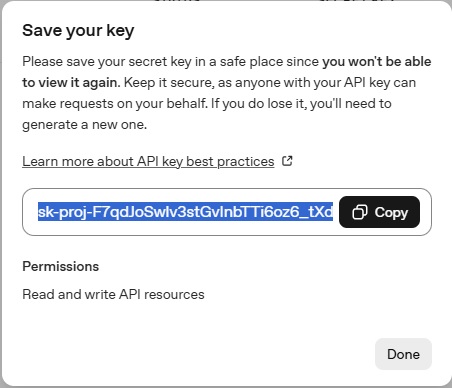
Steps to get your API key:
- Sign up at OpenAI
- Generate your API key
- Store it safely (you will use it in Python code)
3. Python Installed on Your Computer
You should have Python installed (preferably 3.8 or later). I personally recommend Python 3.10 or 3.11 because it works perfectly with modern AI image generation tools and libraries used in Text To Image Generation AI projects.
You can download it from: python.org
4. A Code Editor
You can use any code editor, but I personally prefer VS Code because it is widely used for Python OpenAI image generation workflows.
It helps with:
- Writing clean Python code
- Running scripts easily
- Managing AI projects efficiently
5. OpenAI Python Library
We will install this library in the next step. It is the core dependency that connects Python with the OpenAI image API and allows you to send prompts to the GPT-Image Python API.
This library is essential for building real-world Text To Image Generation AI applications.
Installing it is simple and takes less than a minute.
Final Note
Once you have everything ready, you are fully prepared to start building real AI projects using AI image generation with Python. A proper setup ensures that your workflow with AI image generation tools is smooth, error-free, and production-ready.
How to Install Required Python Libraries
Before we start coding, we need a few Python libraries to make everything run smoothly for AI image generation with Python. Setting them up correctly at the beginning is very important because it avoids unnecessary errors later when working with the OpenAI image API. Don’t worry—this part is very simple.
From my experience, once your environment is properly set up, building projects using AI image generation tools becomes much faster and more enjoyable.
Required Libraries
Here are the three essential Python libraries for this Text To Image Generation AI project:
- openai – This is the core library that connects Python to the OpenAI image API and allows you to generate AI images using the GPT-Image Python API.
- python-dotenv – This helps you securely load your API key from a
.envfile, which is a best practice when working with AI applications. - Pillow (PIL) – A powerful Python library used for processing, handling, and saving AI-generated images locally.
Installation Command
To install all required dependencies at once, open your terminal or command prompt and run:
pip install openai python-dotenv pillow
After Installation
Once the installation is complete, your system is fully ready for AI image generation with Python. These libraries form the foundation for working with Text To Image Generation AI and allow you to send prompts, generate images, and save outputs directly using code.
How to Secure OpenAI API Key (.env Setup)
When working with AI image generation with Python, one of the most important steps is securely handling your API key. In my opinion, this is something beginners often ignore, but it is very critical when building real projects using the OpenAI image API or the GPT-Image Python API.
Instead of hardcoding your API key directly inside the Python script, it is always better to store it in a separate environment file. This is a common practice in modern AI image generation tools and helps protect your credentials from accidental exposure.
For this setup, we use a .env file, which allows us to store sensitive information like API keys outside of our main codebase. In my experience, this approach makes your project more secure and production-ready, especially when working on Text To Image Generation AI applications.
To set it up, simply create a file named .env in your project folder and add your OpenAI API key like this:
OPENAI_API_KEY=your_api_key_here

After that, we use the python-dotenv library to load this key into our Python script securely. This ensures that your AI image generation with Python workflow remains clean, safe, and easy to manage.
From a developer’s perspective, using environment variables is not just a good practice—it is essential when building scalable applications with the OpenAI image API or any modern AI system.
Once this setup is complete, we are ready to connect Python with the GPT-image model and start generating AI images securely without exposing sensitive credentials.
Step-by-Step Python Code for Image Generation
from openai import OpenAI
from dotenv import load_dotenv
import base64
from PIL import Image
from io import BytesIO
import os

load_dotenv(override=True)
client = OpenAI(api_key=os.getenv("OPENAI_API_KEY"))

prompt = input("Enter the text to create image :")

result = client.images.generate(model="gpt-image-1", prompt=prompt, size="1024x1024")

image_bytes = base64.b64decode(result.data[0].b64_json)
image = Image.open(BytesIO(image_bytes))
image.save("Output.jpg")

print("Image created and saved successfully into a local folder!")
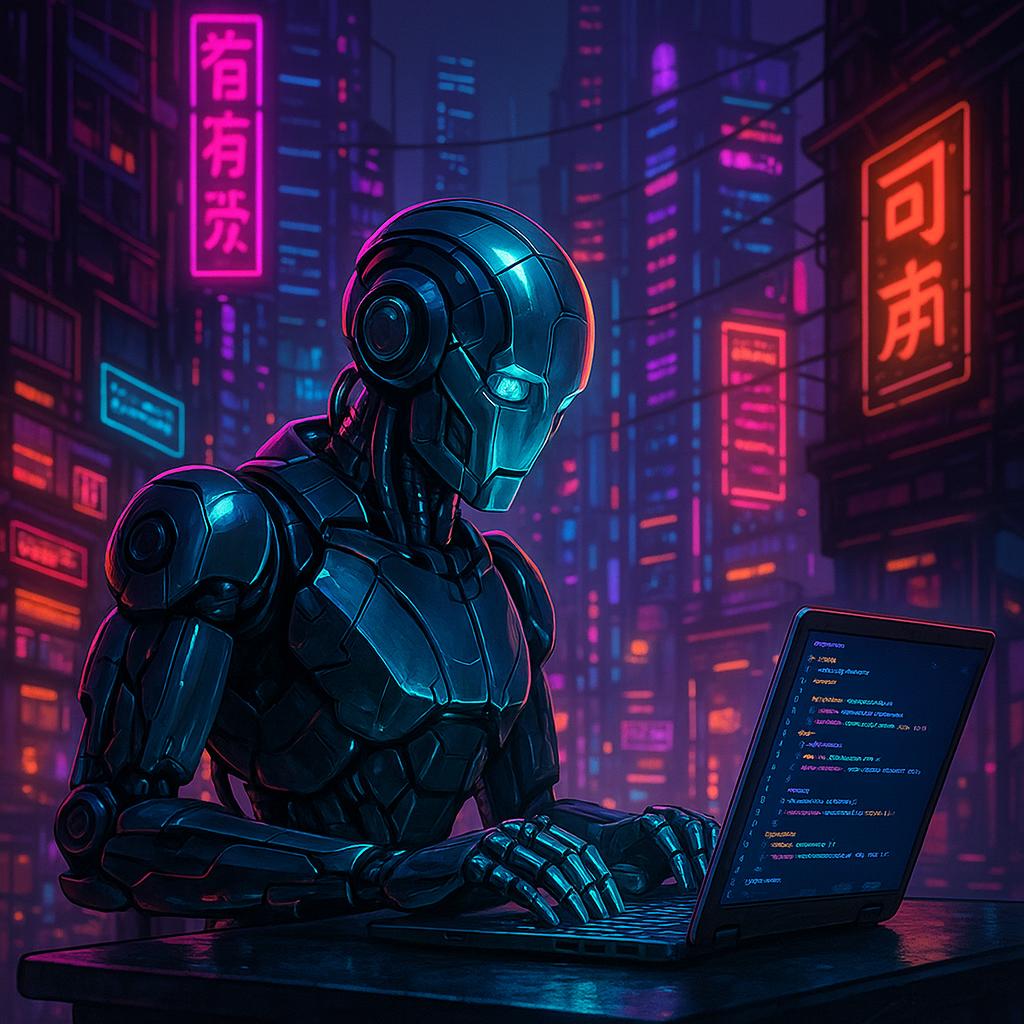
Final output of the code (Output.jpg)
How To Create Text To Image Generation AI Video
Explanation of the Code
This Python OpenAI image generation tutorial walks through the complete process step by step, making it easy to understand how AI image generation with Python actually works in practice.
We begin by importing the required libraries such as OpenAI, python-dotenv, base64, and Pillow. These libraries help us connect to the OpenAI image API, securely load environment variables, and process image data efficiently.
Next, the load_dotenv() function is used to load the API key from the .env file. This ensures that sensitive information is not exposed directly in the code, which is a best practice when working with modern AI image generation tools.
After setting up the environment, we initialize the OpenAI client using the API key. The program then prompts the user to enter a description, which acts as the input for the Text To Image Generation AI system.
Once the prompt is provided, the request is sent to the GPT-Image Python API, which processes the text and generates an image. The response is returned in base64 format, which is then decoded into binary data.
Finally, using the Pillow library, the decoded data is converted into an image file and saved locally as Output.jpg. This completes the full workflow of AI image generation with Python—from user input to final image output.
Overall, this code demonstrates how simple it is to build real-world applications using the OpenAI image API and automate creative tasks using Python.
How GPT Image Model Generates Images
Understanding how the GPT image model generates visuals is very important when working with AI image generation with Python. In simple terms, the model converts a text prompt into a structured visual output using advanced machine learning techniques.
When a user sends a request through the OpenAI image API, the system does not directly “draw” an image. Instead, the underlying generative AI model interprets the prompt and breaks it down into meaningful visual elements such as objects, style, lighting, and composition.
In my understanding, this process is powered by large-scale training on image-text pairs, which helps the system learn how language maps to visual concepts. This is what makes modern AI image generation tools so powerful and flexible for developers and creators.
For example, if I use a prompt like “a cinematic cyberpunk city with glowing neon lights and flying cars at night”, the GPT-Image Python API processes this input and performs prompt-based image creation by reconstructing each element into a detailed visual output.
This is also where Text To Image Generation AI becomes highly effective. Instead of manually designing each element, the model intelligently combines learned patterns to generate realistic or artistic images in seconds.
From a practical point of view, this process allows developers like me to automate creative workflows such as blog thumbnails, marketing visuals, and UI mockups using AI image generation with Python and the OpenAI ecosystem.
In short, the GPT image model transforms natural language into visual content by using deep learning-based understanding, making it one of the most powerful innovations in modern AI image generation tools.
How to Save AI Generated Images in Python
Once you generate an image using AI image generation with Python, the next important step is saving it properly on your system. In real-world projects, especially when working with the OpenAI image API or GPT-Image Python API, storing output images correctly is essential for reuse in blogs, thumbnails, or design workflows.
When the AI model generates an image, it is usually returned in a format like base64 or raw binary data. This data needs to be decoded and converted into a proper image file before saving it locally.
In most AI image generation tools, Python is used to handle this process because it provides simple libraries like Pillow that make image processing very easy.
Below is a simple example of how you can save an AI-generated image using Python:
from PIL import Image
from io import BytesIO
import base64

result=client.images.generate(model="gpt-image-1",prompt=prompt,size="1024x1024")

image_bytes=base64.b64decode(result.data[0].b64_json)
image=Image.open(BytesIO(image_bytes))
image.save("Output.jpg")
In this process, the base64 response from the Text To Image Generation AI model is decoded first, then converted into an image object, and finally saved in formats like PNG or JPG.
From a developer perspective, this step is very important because it completes the full pipeline of Python OpenAI Image Generation—from prompt input to final stored output.
You can also customize the file name dynamically based on the prompt or timestamp, which is useful when generating multiple images using the OpenAI image API.
In short, saving AI-generated images correctly ensures that your work with AI image generation tools is practical, reusable, and ready for real-world applications like blogs, marketing creatives, and YouTube thumbnails.
Benefits of AI Image Generation
- Automate image creation
- Quickly generate blog thumbnails
- Experiment with new design ideas
- Create marketing visuals faster
In real-world AI systems, similar technologies are also used in projects like AI Voice Assistant Chatbot, where developers extend AI beyond images into voice-based automation.
Learning AI tools early gives developers a huge advantage. Following this Ultimate Easy Python OpenAI Image Generation Tutorial helps beginners start creating AI-generated images quickly.
Example Prompts for Better Image Results
One thing I noticed while working with Text To Image Generation AI is that real prompts don’t sound perfect—they sound natural. Most people just type what they have in mind, and surprisingly, that often works really well with the OpenAI image API.
Instead of overthinking the prompt, it’s better to describe the idea clearly, like how you would explain it to a designer. This approach works effectively with Text To Image Generation AI and gives more realistic results.
Here are some natural, human-style prompts you can try:
- “a simple youtube thumbnail for python tutorial with laptop and coding screen, make it clean and eye catching”
- “workspace setup with laptop, coffee, and soft lighting near window, looks realistic not too fancy”
- “a blog banner image for AI tutorial, something modern with blue colors and tech feel”
- “guy coding at night with dark room and only monitor light, realistic style”
- “simple thumbnail for coding video with python logo and some glowing effect”
These types of prompts work well because they reflect how people actually think and describe ideas. When using Python OpenAI Image Generation, clarity matters more than complexity.
You can always improve results by adding small details like color, lighting, or mood, but even simple prompts like these can generate high-quality images using the GPT-Image Python API.
In short, don’t try to write “perfect” prompts—just describe what you want naturally. That’s often the fastest way to get useful results when working with AI image generation with Python.
Common Errors and Fixes in Python OpenAI Image Generation
While working with AI image generation with Python, you will definitely run into a few errors—this is completely normal. Most issues are not complex, but they can be frustrating if you don’t know what’s causing them.
Based on real usage of the OpenAI image API and GPT-Image Python API, here are some of the most common problems developers face and how to fix them quickly.
1. Invalid API Key Error
One of the most common issues is an authentication error due to an incorrect or missing API key.
Error: Incorrect API key provided
Fix:
- Make sure your API key is correct in the
.envfile - Check if
load_dotenv()is properly loading the key - Ensure there are no extra spaces or quotes in the key
2. Billing / Quota Exceeded
Sometimes the request fails even if your code is correct. This usually happens due to billing limits.
Error: Quota exceeded or insufficient_quota
Fix:
- Check your OpenAI billing dashboard
- Add a payment method if not already added
- Make sure your usage limit is not reached
3. Module Not Found Error
This happens if required libraries are not installed properly in your environment.
Error: ModuleNotFoundError: No module named 'openai'
Fix:
- Run:
pip install openai python-dotenv pillow - Check if you’re using the correct Python environment
4. Image Not Saving Properly
Sometimes the image is generated but not saved correctly on your system.
Problem: Image file is empty or corrupted
Fix:
- Make sure you decode the base64 response properly
- Use
BytesIOcorrectly when opening the image - Verify that Pillow is installed and working
5. Slow Response or Timeout
Image generation can take time depending on server load and image size.
Fix:
- Use smaller image sizes like 512×512 for faster results
- Check your internet connection
- Retry the request after a few seconds
6. Prompt Not Giving Expected Output
This is not exactly an error, but a very common frustration when working with Text To Image Generation AI.
Fix:
- Be more specific in your prompt
- Add details like style, lighting, or environment
- Avoid very short or vague descriptions
7. Environment Variable Not Loading
Sometimes your API key is correct, but Python cannot read it.
Fix:
- Make sure your
.envfile is in the correct folder - Check if
load_dotenv()is called before using the key - Restart your terminal or IDE after changes
In my opinion, once you understand these common issues, working with AI image generation tools becomes much smoother. Most errors are small setup problems, and fixing them takes just a few minutes.
Handling these errors properly is part of becoming comfortable with the OpenAI image API and building reliable applications using the GPT-Image Python API.
Conclusion
Working with Python OpenAI Image Generation has completely changed how I approach creating visuals for blogs, thumbnails, and small projects. What used to take hours in design tools can now be done in seconds using the OpenAI image API and simple Python code.
Throughout this tutorial, we covered everything from setting up the environment to generating and saving images using the GPT-Image Python API. The process is not complicated, and once you understand the flow, it becomes very easy to build your own Text To Image Generation AI projects.
The most important takeaway, in my opinion, is how powerful prompts can be. Even small improvements in how you describe your idea can significantly change the final output. This is where experimenting with different inputs helps you get better results over time.
Another key advantage is automation. Using modern AI image generation tools, you can generate blog thumbnails, marketing images, and creative visuals without relying on manual design work. This gives developers and content creators a huge productivity boost.
If you’re just starting, don’t try to make everything perfect. Start simple, test different prompts, and gradually improve your workflow. That’s the best way to get comfortable with Image generation | OpenAI API.
Overall, this tutorial gives you a solid foundation to start building real-world projects using the OpenAI image API. Once you get familiar with it, you can expand into more advanced use cases and create powerful AI-driven applications.
FAQ: Python OpenAI Image Generation (Beginner Guide)
1. Do I need coding experience to generate AI images using Python?
Not really. You don’t need to be an expert. If you know basic Python (like running a script and installing libraries), that’s enough to get started with AI image generation with Python. The setup is simple, and most of the work is just writing prompts.
2. Why is my OpenAI image API not working?
This usually happens due to a few common reasons—invalid API key, billing not enabled, or missing libraries. If you’re using the OpenAI image API, first check your API key, then make sure your account has an active plan. Most issues are small setup problems.
3. How much does AI image generation cost?
The cost depends on how many images you generate and the model you use. The GPT-Image Python API works on a pay-as-you-go system. If you’re just testing or learning, the cost is usually very low.
4. Why are my generated images not accurate?
In most cases, the problem is the prompt. Text To Image Generation AI works best when your description is clear and detailed. Try adding style, lighting, or context to your prompt instead of using very short sentences.
5. Can I use AI-generated images for my blog or YouTube thumbnails?
Yes, you can use them for blogs, thumbnails, and projects. Many creators use Text To Image Generation AI to quickly create visuals without designing everything manually. Just make sure to follow usage guidelines of the platform you are using.
6. What is the best image size to use?
For faster results, smaller sizes like 512×512 work well. If you need higher quality (for thumbnails or banners), you can use 1024×1024. The OpenAI image API allows you to choose based on your requirement.
7. How can I improve my AI image results?
The best way is to experiment with prompts. Try adding details like “realistic”, “cinematic lighting”, or “minimal design”. Over time, you’ll understand what works best when using AI image generation with Python.
8. Is GPT-Image better than other AI image tools?
It depends on your use case. The GPT-Image Python API is very useful for developers because it integrates easily with Python and automation workflows. Other tools may offer more customization, but this is great for simplicity and speed.
9. Can I generate multiple images at once?
Yes, you can generate multiple images by modifying your request in the API. This is useful when creating bulk content like blog thumbnails using AI image generation tools.
10. Is AI image generation safe to use in real projects?
Yes, it is widely used in real-world applications like marketing, blogging, and design automation. Just make sure you follow best practices and use the OpenAI image API properly in your projects.